Bursar FAQs
JST Students:
Fall: August 21st
Winter Intersession: December 21st
Spring: January 21st
Summer: May 21st
You may pay with checks, cashier checks, cash, online through your SCU Pay Site on eCampus with e-checks.
International students may use Flywire to wire money to Santa Clara University directly.
SCU offers an in-term payment plan option for an additional fee of $40 for each term you enroll in the payment plan.
Please note: that you must re-enroll online for each term for this in-term payment plan option.
You can learn more about the payment plan option here.
We do not accept credit or debit card payments.
Please make tuition checks payable to Santa Clara University. Be sure to include your student's name and their SCU student ID number on the memo line on the check.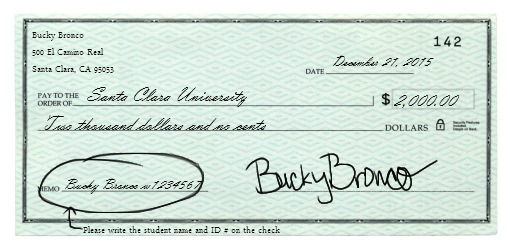
Please mail checks to the following address:
SCU Payment Processing
PO.Box 550
Santa Clara, CA 95052-0550
If you would like to mail checks overnight, please use this address:
Santa Clara University
Attn: Bursar's Office
500 El Camino Real
Santa Clara, CA 95053
Make sure that the checks include your name and the SCU ID number!!
You can access your SCU Pay portal by following these steps:
- Log onto your eCampus and click on the "Financial Account" Tile
- Click on the SCU Pay Site link on the left side menu (Please use Chrome or Firefox; and disable your pop-ups to avoid a blank screen!)
Please remember to always use Google Chrome or Firefox on a laptop or computer when you are making an online payment. These internet browsers are the most compatible with our SCU Pay Site. Please disable your pop-ups to avoid a blank screen!
A late payment hold will be applied your student account, which would restrict you, the student, from adjusting your class schedule. Please note that if you miss a payment deadline, a $100 non-refundable late payment fee will also be placed on the account.
For delinquent holds to be removed, the overdue bill must be paid. Depending on the form of payment, the hold will be released according to the following timeline:
- For cash, cashier's check, or international wire transfers, the hold will be released within 24 business hours. We do not currently accept domestic wire transfers.
- Online payments will take 7 calendar days.
- Personal check payments will take 14 calendar days.
Some payment holds cannot be paid online, depending on the hold. Please call for more information.
For poor payment history, some account holds will remain for multiple terms, depending on the payment history.
Here are the steps to add an Authorized User:
- Log onto your eCampus and click on "Financial Account" Tile
- Click on the SCU Pay Site link on the left side menu (Please use Chrome or Firefox and that your pop up blocker is disabled so that you get to your SCU Pay portal correctly or it will appear as a blank screen!)
- Once you are on the SCU Pay Site, you need to locate the “Authorized User” section in the bottom left hand corner.
- Next, click on “EDIT” and then add the Authorized User info (Please note: If you have a sibling at SCU, the Authorized Username must be different per student)
- The Authorized User will then receive an email with their username and temporary password after they are signed up from onestop@scu.edu.
In compliance with FERPA, The Federal Family Education Rights and Privacy Act of 1974 as amended, Santa Clara University (SCU) is prohibited from providing a student's financial and non-directory academic information to any third party including parents, spouse, guardian, etc., without the student's authorization. This information includes various student financial or academic information, but is not limited to: all student billing items, awarded financial aid, housing, enrollment status etc. More information on FERPA can be found at www.scu.edu/ferpa
Authorized Users receive billing notification emails and can view/pay the bills. FERPA (Federal Educaton Rights and Prvacy Act of 1974) allows designated persons to receive detailed information about your student account.
In order to request your credit balance as a refund, please log onto your eCampus portal. One you are logged in, click on the Financial Account tile to begin.
You must enroll in Direct Deposit before requesting the refund.
- Once you have enrolled in Direct Deposit, simply click on "Refund Request" to request a refund through the left side menu directly underneath the "Enroll in Direct Deposit" link
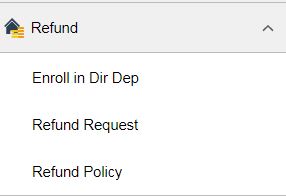
Refunds are processed on Thursdays and you will receive the refund via Direct Deposit within 1-3 days from the refund processing date.
For a more detailed explanation of SCU’s Refund Policies and Processes, .
Please follow the steps below to enroll in Direct Deposit:
- Log into eCampus and click on the Financial Account Tile
- Click on the Refund Section on the left hand side menu and Click on "Enroll in Direct Deposit"
- Enter your Bank Account Information
- Agree to the Terms and Conditions and click on "Submit"
You can find all this information on your eCampus portal.
- Simply click on the Financial Account Tile and click on the "SCU Tuition & Fee Form" link on the left hand side menu.
- If you click on the magnifying glass icon, you can choose the desired term and an email will be sent to you shortly after you submit your request.
Santa Clara University requires all degree seeking students enrolled at least half -time in their school or college to have health insurance (excluding certificate and online programs). ALL F-1 visa students, regardless of number of units, are required to have insurance.
This requirement helps to protect against unexpected high medical cost and provides access to quality health care. In order to waive out of the health insurance, students must complete the health insurance waiver before the deadline to waive, which is provided on the Cowell Health Center webpage. Click here for more information about health insurance and about the waiver.
THE WAIVER MUST BE COMPLETED EVERY ACADEMIC YEAR.
1) Please go to www.scu.edu/cowell/insuranc
2) Click on the "Click here" button of the insurance page which will then take you to Gallagher's website
and the temporary password is the 11 digit ID number with NO SPACES.
For example: (username: bbronco@scu.edu, PW: 00001234567)
5) You, the student, will then get an email from Gallagher (if this is your first time waiving, it will give you a temp password and send it to the students SCU email. If you forgot your Gallagher Login information you can click "Forgot Password" and a temporary password will be sent to your SCU email)
6) After logging in you should click on the "I want to WAIVE" red button which will then take you to the Health Insurance waiver application.
7) After completing the application, you will get an email to your SCU email account stating that you have been approved for the waiver.
**Note for F1 visa students: please follow the extra steps available on www.scu.edu/cowell/insurance
Santa Clara will be utilizing Tab Service company (TABS) for the processing of your 2019 Form 1098-T.
Login at: www.tsc1098t.com
Site ID: 11477
User Name: SCU 11 digit ID (example: 00001111111)
Password: Last 4 of your SSN; you will be prompted to change your password after your initial login for security purposes. If you already changed it and forgot, please click on "forgot password."
Toll Free Help Hotline: 888-220-2540. Below is your login screen:
If we do not have your SSN on file, please submit a W-9S form to the One Stop Office so that a 1098-T form can be created.
Non-Resident Alien/International students with a valid SSN/ITIN, may obtain a 1098-T form by completing the W-9S form. Please visit SCU One Stop to complete the W9S form so that a 1098-T Form is created.
The deadline to submit the w-9S form for the 2019 Form 1098-T is March 1st, 2020.
Use the IRS Interactive Tax Assistant tool on IRS.gov to see if you can claim the credit.
Please visit the Bursar Office webpage for detailed information about the 1098-T.
Santa Clara University staff does not provide tax advice to individuals.
Financial Aid FAQs
In order to be eligible for financial aid you must meet the following criteria:
- be a U.S. citizen or eligible non-citizen in a degree or certificate program of study at least half-time
- make satisfactory academic progress
- not be in default on a federal student loan
- not owe a refund on any federal financial aid grant
- have a valid Social Security number
- be registered with Selective Service (if required)
- enrollment status will be calculated based only on those courses that are required for, or that can be applied as an eligible elective credit toward, a student's degree or certificate program
Generally, you are an eligible noncitizen if you are one of the following:
- U.S. permanent resident, with a Permanent Resident Card (formerly known as an Alien Registration Receipt Card or "Green Card”)
- Conditional permanent resident (I-551C)
- Other eligible noncitizen with an Arrival-Departure Record (I-94) from the Department of Homeland Security showing any one of the following designations: “Refugee,” “Asylum Granted,” “Indefinite Parole,” “Humanitarian Parole,” or “Cuban-Haitian Entrant”
- A citizen of the Republic of Palau (PW), the Republic of the Marshall Islands (MH), or the Federated States of Micronesia (FM).
You can receive federal student aid if you are an eligible noncitizen. You must enter your eight or nine digit Alien Registration Number (ARN) on the FAFSA.
If your citizenship status has changed from an eligible noncitizen to a U.S. citizen, you should contact the Social Security Administration (SSA) to update your citizenship status. If you do not update your citizenship status with the SSA, it could delay processing your student financial aid. To contact the SSA call +1.800.772.1213 or visit the Social Security Administration's Web site at www.ssa.gov.
You are neither a citizen nor an eligible noncitizen if you have any of the following;
- An F1 or F2 student visa
- A J1 or J2 exchange visitor visa
- A G series visa (pertaining to international organizations)
- Other categories not included under U.S. citizen and eligible noncitizen
The Free Application for Federal Student Aid (FAFSA) is the application used to determine eligibility for federal and state student grants, federal work study and federal loans. The U.S. Department of Education accepts applications beginning January 1 of each year for the upcoming academic year. Go to https://studentaid.gov/h/apply-for-aid/fafsa
Yes. Go to https://studentaid.gov/h/apply-for-aid/fafsa to complete the form.
Santa Clara University's Federal School Code is 001326.
If you accept a Federal Direct Loan, federal and institutional regulations require you to complete an entrance counseling tutorial, where you will learn important information about repayment, deferment, forbearance and cancellation. Students meet this requirement by completing the online the entrance counseling tutorial at studentaid.gov.
If you have not previously received a Federal Direct Loan, the federal government requires you to complete entrance counseling to ensure that you understand the responsibilities and obligations you are assuming.
The Master Promissory Note (MPN) is a legal document which the borrower signs as a promise to repay your loan(s) and any accrued interest and fees to the U.S. Department of Education. It also explains the terms and conditions of your loan(s). Unless your school does not allow more than one loan to be made under the same MPN, you can borrow additional Direct Loans on a single MPN for up to 10 years.
The Loan Master Promissory Note (MPN) must be signed by the borrower prior to the school certification and prior to the disbursement of any loan funds to the student's account. The completion of the MPN is generally signed at the time the application is submitted and can be signed electronically during the application process.
If the borrower applies for the loan each year, then the borrower only has to complete the MPN once – the first year these funds are borrowed for you. The borrower, however, must re-apply for a new loan every year.
To qualify for federal student aid (loans, and work-study funds), you have to meet certain requirements.
Student must be enrolled in at least half-time status to be eligible for federal funding.
Please note that some Scholarships awarded by the Graduate School of Law may be awarded based on the amount of units that you are enrolled in so please be sure to check with your Program!!
Jesuit School of Theology:
Full-time: 9 units Half-time: 4.5 units
Students will receive an email notification. Once they receive this notification, the student can log onto eCampus to accept or decline the offered aid.
If you received a financial aid e-mail award notification, you should log-on to the ecampus system to accept or decline your aid. In order to access ecampus you will need your student id number and password.
- Log into ecampus, and click on your Financial Aid Tile
- Select the "Accept/Decline" link on the left side menu
- Read the Statement of Educational Purpose and select the "I Agree" button
- Please click the Pencil icon to make edits to your awards. Review each award and corresponding message.
- Remember to "Submit" your changes.
The Financial Aid Office will notify you by email if there are any updates to your financial aid package.
Yes. You can borrow less if you do not want the full amount. You would just need to email onestop@scu.edu a formal email that includes your name, ID number and the name of the loan you wish to have reduced.
Once you are awarded a financial aid package your first year with the University, you unfortunately cannot apply for additional scholarships through SCU. You can, however, apply for private scholarships outside the University. We have a scholarship binder in the One Stop Office that all students are welcome to look through. You can also visit the Financial Aid Website to find additional resources for helping with the private scholarship search, such as links to online databases full of private scholarships!
You have the option to mail the check or drop it off in the One Stop Office. Please make sure the check is made payable to Santa Clara University. If the check is made out to you, please endorse the back of the check and write “Make Payable to SCU.”
If you choose to mail the private scholarship, please mail it to:
Santa Clara University
Financial Aid Office
500 El Camino Real
Santa Clara, CA, 95053
Please note that if the scholarship donor does not state otherwise, we will divide the private scholarship check evenly over three quarters (Fall, Winter, Spring). If you want your private scholarship disbursed differently, please have the donor email or mail our office something in writing stating the way you’d like your scholarship money disbursed.
For additional information please contact the Law Financial Aid Services:
Law Financial Aid Services
Heafey Law Library
Financial Aid Office
500 El Camino Real
Santa Clara, CA 95053
lawfinancialaid@scu.edu
+1.408.554.5048
Click here for more information about Financial Aid!
Registrar FAQs
The 11 digit SCU ID # is located on the Profile tile of your eCampus portal.
If you cannot remember your password, simply click on the "Forgot password" link and it should email the personal email address that is on your eCampus (that is why it is important to keep your contact information current). You will then be provided with a temporary password to regain access to your account. If you are still experiencing technical difficulties with accessing your eCampus please contact the IT Helpdesk at: +1.408.554.5050
You can request your enrollment verification electronically through your eCampus account.
- Log onto your eCampus account
- Go to the Academics Tile and click on "My Academics"
- Click on Request Enrollment Verification and you can have it faxed, mailed or held at SCU for pick up.
Please note: You can also aquire the Enrollemnt Verification form on scu.edu/registrar/forms and email the signed form to: OOTR@scu.edu.
You cannot place an Enrollment Verification request through email or over the phone.
You can request your transcripts electronically through your eCampus account.
- Log onto your eCampus account
- Click on your Academics Tile
- On the left hand side menu, select Request Official Transcript and pick where you would like your transcript mailed to.
You cannot place a transcript request through email or over the phone. (https://www.scu.edu/ecampus)
|
Official transcript requests will be processed daily during regularly scheduled working hours and be mailed within 3 working days. Transcripts from archived and/or non-electronic records may take up to 2 weeks to process. Transcript requests that are submitted while the University is closed for the holidays will be processed in the order the requests were received when the office reopens.
Check your eCampus Student Center for grade entry and/or degree posting before submitting your request. If you need a form attached to your transcript, you must make a request in writing. Please refer to our website: https://www.scu.edu/registrar/frequently-asked-questions |
All current SCU students and alumni may order copies of their official transcript online. SCU offers both electronic transcripts ($3.00 USD per transcript) as well as paper transcripts ($3.00 USD per transcript + postage) via Parchment Credential Services.
Standard Postage: $2.50 USD
Fedex Postage: $25.00 USD
The Office of the Registrar does not provide RUSH or PICK UP service.
Please follow these steps so that you can view the Unofficial Transcript online:
- Login to eCampus
- Click on the Academics Tile and click on the "Transcripts and Verification" link on the left side menu
- Please select the "View Unofficial Transcript" Report Type, and click "Submit"
- To view reports, your device should allow popups and have a PDF viewer.
- A new screen will pop up and the Unofficial Transcript will be available.
Students do not receive their diplomas on the day of Commencement. Rather, the diplomas will be mailed to the address provided on the petition form 3-5 months after the degree completion date. If your address changes after you petition to graduate, please email registrar@scu.edu
No, Diplomas will be held at the Office of the Registrar for students who have a financial hold or Student Life hold until the hold is removed. It is the student's responsibility to reconcile the hold and contact the Office of the Registrar once it has been removed.